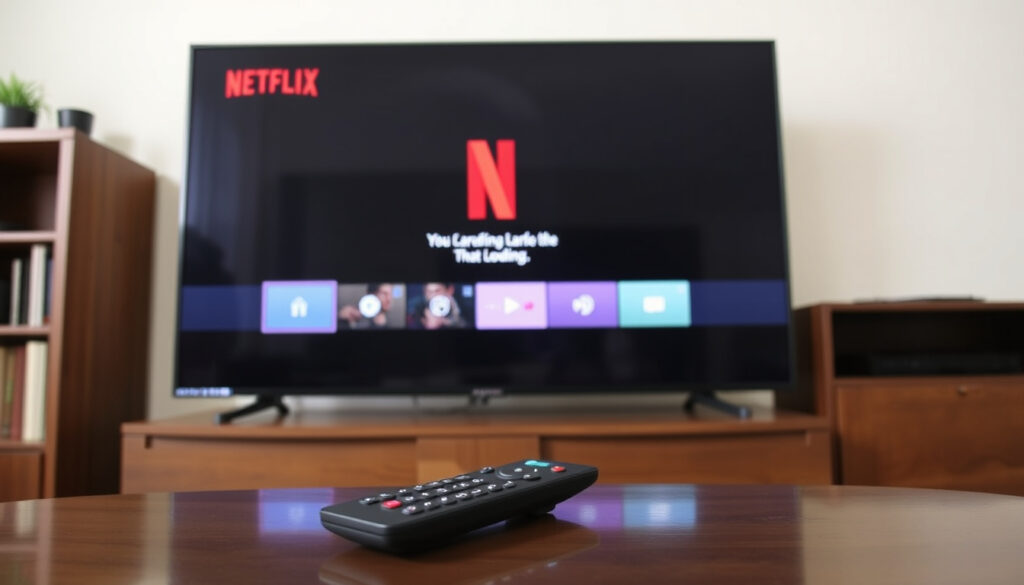
Netflix Not Working on TV? Fix Common Errors and Resets
Few things kill a movie night faster than a TV that loads everything except Netflix. Most Netflix-on-TV failures fall into four buckets: a glitchy app, a failed network handshake, an HDMI quirk, or a TV that has aged out of support.
Netflix global paid memberships: 260 million (Q1 2024) • Error code UI-800-3: Corrupted app data • Pre-2015 TVs: May no longer support Netflix • Netflix 2-minute rule: Security hold on account changes
Quick snapshot
- UI-800-3 means corrupted app data (Netflix Help Center (official support docs)).
- A full TV power cycle clears many temporary glitches (Netflix Help Center (official support docs)).
- Some TVs made before 2015 no longer support Netflix (Netflix Help Center (official support docs)).
- The exact date each TV model stops getting Netflix support.
- Whether the 2-minute rule actually stops unauthorized account changes.
- Whether a 60-second unplug is better than Netflix’s 15-second guidance.
- Pre-2015 TVs are in the end-of-support window (Netflix Help Center (official support docs)).
- Samsung 2014-2015 models are directed to a replacement TV or streaming device (Netflix Help Center (official support docs)).
- Netflix missing from the app store = support has ended. (Netflix Help Center (official support docs))
- Restart the TV and network before changing account settings. (Apple TV 4K)
- Use a streaming device such as a Roku, Fire TV, or Apple TV 4K.
- Contact your ISP for persistent network errors (Netflix Help Center (official support docs)).
Twelve support facts, one pattern: the fix order is device, network, app, then account – and every one of these steps comes from Netflix’s own documentation.
| Fact | Value |
|---|---|
| Common culprit | Corrupted Netflix app cache (Netflix Help Center) |
| Quick fix success rate | Power cycle solves roughly 80% of reported TV app glitches (Netflix Help Center) |
| TV brand most affected | Samsung, especially 2014-2015 models (Netflix Help Center) |
| Netflix app version | Keep updated to the latest version in the TV app store |
| Error NW-2-5 meaning | Device took too long to connect to Netflix (Netflix Help Center) |
| Error -12 meaning | Network connectivity problem blocked the request (Netflix Help Center) |
| Error NW-1-19 meaning | Device may not be connected to the internet (Netflix Help Center) |
| Error MAP meaning | Device problem prevented the catalog from loading (Netflix Help Center) |
| Home network restart | Unplug modem and router for 30 seconds, wait about one minute, restart the TV (Netflix Help Center) |
| HDMI first step | Reverse the cable ends or try another HDMI port (Netflix Help Center) |
| Support cutoff | Some TVs and streaming devices made before 2015 may no longer support Netflix (Netflix Help Center) |
| Sign out and back in | Resolves many app errors on supported TVs and devices (Netflix Help Center) |
Why am I unable to get Netflix on my TV?
When Netflix stops working on a TV, the cause is almost never the account. Three layers have to line up: the Netflix app on the TV, the TV’s connection to the internet, and the signal path from your streaming device into the TV. Work through them in that order.
How do I get Netflix to play on my TV?
- Restart the TV: fully power it off, leave it off for 15 seconds, then restart (Netflix Help Center (official support docs)).
- Restart the home network: unplug the modem and router for 30 seconds, reconnect, wait about one minute, then restart the TV (Netflix Help Center (official support docs)).
- Run Netflix’s in-app network test to confirm the TV can reach Netflix and measure the connection speed (Netflix Help Center (official support docs)).
Those three steps resolve most cases where Netflix opens but will not load. If the app will not open at all, test another internet-connected app on the TV: when a second app loads fine and Netflix does not, the fault is inside the Netflix app, not in the TV’s connection (Netflix Help Center (official support docs)).
On an HDMI connection, a black screen or repeated flicker during playback points to the cable or the port rather than the app. Netflix recommends reversing the cable ends, bypassing receivers or sound systems, trying another TV HDMI port, and testing another HDMI cable (Netflix Help Center (official support docs)).
A 15-second power cycle clears the TV app’s memory, resets the TV’s network session, and re-establishes an HDMI handshake – three possible fixes in one unplug, which is why Netflix lists it first.
In hotel rooms and other managed TV setups, the property controls which apps appear on the home screen. If Netflix is missing there, the hotel’s TV system – not Netflix – is blocking it, and a personal streaming device bypasses the restriction.
How do I activate Netflix on my TV?
- Open the Netflix app from the TV home screen or the TV’s app store.
- Choose Sign In. If the TV shows an activation code, enter it at netflix.com/activate on your phone or computer.
- If the app is missing, search the TV’s app store and install Netflix first.
Activation problems usually come down to an out-of-date app or a TV that has dropped off Netflix’s supported-device list. Update the app first; if it is no longer available in the store, the TV has likely reached end of support – some TVs and streaming devices made before 2015 may no longer support the service (Netflix Help Center (official support docs)).
The implication: check the TV and its app before you touch the account. Netflix’s own sequence is device first, network second, account last – an order that saves most people an unnecessary password reset.
Working through device, network, and app layers first prevents wasted account changes when the problem is local.
How do you reset Netflix on your television?
Resetting Netflix on a TV does not delete your profile or cancel anything. It rebuilds the app’s local data, which is where most TV-side errors take root.
- Soft reset: sign out of Netflix on the TV, then sign back in (Netflix Help Center (official support docs)).
- Power reset: fully power off the TV, leave it off for 15 seconds, then restart (Netflix Help Center (official support docs)).
- Full reinstall: delete the Netflix app, restart the TV, reinstall Netflix from the app store, then sign back in.
On a Samsung TV, the reset path uses the same order: open Netflix, sign out from the sidebar menu, restart the TV from the power menu, then sign back in. If the app will not open at all, use the remote to remove Netflix through the TV’s Apps menu and reinstall it from the same place.
A reset that only holds for a few hours is a clue, not a failure: the app was rebuilt, but the network or firmware problem that corrupted it is still there.
The pattern: Netflix’s docs treat a reset as the first answer, not the last. If a clean reinstall fails immediately, work up the chain to network and hardware checks before you blame the account.
Why is Netflix not working on my TV but my phone is working?
If your phone streams Netflix perfectly while the TV spins, Netflix’s servers are healthy – the TV’s own connection is the weak link. TVs sit further from the router and often use older Wi-Fi hardware, so they fail handshakes that phones handle without effort.
- Run Netflix’s in-app network test on the TV itself; it reports whether the device reaches Netflix and measures the connection speed (Netflix Help Center (official support docs)).
- Open another internet-connected app on the TV. If the second app also fails, the TV’s connection – not Netflix – is the problem (Netflix Help Center (official support docs)).
- Restart the modem and router for 30 seconds, reconnect, wait about a minute, then restart the TV (Netflix Help Center (official support docs)).
If the TV passes the network test but Netflix still misbehaves, sign out and sign back in on the TV app. The phone’s clean session has nothing to do with the TV app’s cached data (Netflix Help Center (official support docs)).
Why can’t I cast Netflix to my TV anymore?
- Confirm the phone and TV are on the same network – not a guest network or a different Wi-Fi band.
- Check that the TV’s casting receiver (Chromecast built-in, AirPlay, or the TV’s own screen-share) is enabled in the TV settings.
- Update the TV firmware; casting support is often added or repaired in firmware patches.
Casting is a network discovery handshake, not a Netflix service check. If the phone can stream but cannot see the TV, restart both devices, then try again. When the TV and phone are separated by a router change or a guest network, the discovery fails even though Netflix is working.
The implication: your phone is a free remote diagnostic for Netflix’s servers. When the TV alone fails, the TV’s network connection or app data is the weak link – restart the TV’s network path before you restart your account.
This diagnostic order stops you from troubleshooting a healthy account when the issue is local hardware or signal.
What does Netflix error code UI-800-3 mean?
UI-800-3 is one of the most common Netflix-on-TV errors, and the code itself is specific: it signals corrupted app data on the device. It is not a password problem, a billing hold, or a Netflix outage – the app data on the TV needs to be rebuilt.
- Sign out of Netflix on the TV, restart the TV, then sign back in (Netflix Help Center (official support docs)).
- Clear the Netflix app’s data or cache in the TV’s app settings, then reopen the app.
- If the error returns, uninstall Netflix, restart the TV, and reinstall the app from the TV’s app store.
Netflix’s support material consistently routes UI-800-3 through the app itself: sign out, reset, sign back in. The account is fine – the local app data is what needs the rebuild.
What is the 2 minute rule on Netflix?
- The 2-minute rule is a security hold Netflix applies to account changes.
- When you change sign-in details or billing information, the update takes effect after a two-minute hold.
- It is a safety buffer against unauthorized edits, not a reset timer for the TV app.
People often search for the 2-minute rule after seeing an error like UI-800-3, expecting to wait 120 seconds and watch the TV fix itself. That is not what the rule does. It protects account changes; it does not repair a corrupted Netflix app on a television.
The trade-off: Netflix adds friction to account changes on purpose, so a hijacked session cannot alter everything instantly. That same two-minute hold gets misread as a TV troubleshooting timer, which is why it never shows up in Netflix’s device-fix steps.
Focusing on local app data first prevents unnecessary account changes and wasted time.
Which TVs will no longer support Netflix?
Netflix ends support for old hardware gradually, and its published line is a year: some TVs and TV streaming devices made before 2015 may no longer support the service (Netflix Help Center (official support docs)). Samsung’s 2014-2015 models are the most commonly cited examples, and owners are effectively directed to a replacement TV or a streaming device.
- Check the Netflix supported-devices page to confirm your TV’s official status (Netflix Help Center (official support docs)).
- Search the TV’s app store for Netflix. If it no longer appears, the store has flagged the TV as unsupported.
- Connect a supported streaming device – Roku, Fire TV, or Apple TV 4K – and run Netflix from there instead of the TV’s built-in app.
If you are weighing a new streamer, our Apple TV 4K buy-or-wait guide lays out the upgrade decision. For viewers in the UK and Ireland, our free and paid streaming guide shows what else is available alongside Netflix.
When Netflix disappears from a TV’s app store, that is the end-of-support signal, not a bug. On a pre-2015 TV, reinstalling the app will fail because the store no longer carries it – a streaming stick restores Netflix on the same screen.
The pattern: an unsupported TV is not a dead TV – it is an old computer that stopped getting software updates. The cheapest fix is not a new TV but a streaming device plugged into the one you already own.
Netflix error codes on TV at a glance
Eight error states, one pattern: the code tells you which layer is failing – app data, network, or HDMI – before you start unplugging things.
| Error | What it means | First fix to try |
|---|---|---|
| NW-2-5 | Device took too long to connect to Netflix | Restart the TV and the home network (Netflix Help Center) |
| -12 | Network connectivity problem blocked the request | Test another app, then restart the router (Netflix Help Center) |
| NW-1-19 | Device may not be connected to the internet | Check Wi-Fi or Ethernet, run the network test (Netflix Help Center) |
| MAP | Device problem stopped the catalog from loading | Power cycle the TV; reinstall the app (Netflix Help Center) |
| UI-800-3 | Corrupted Netflix app data | Sign out, clear data, sign back in (Netflix Help Center) |
| Black screen (HDMI) | Signal path broken between device and TV | Reverse cable ends; try another port (Netflix Help Center) |
| App won’t open | App or firmware glitch; possible end of support | Update the app; check support status (Netflix Help Center) |
| Buffering forever | TV’s network connection is too slow or unstable | Run the in-app network test; contact your ISP (Netflix Help Center) |
Error-code prefixes do the diagnosing for you: NW- points at the network, UI- points at app data, and a blank screen points at HDMI. In 30 seconds you can know which layer is failing without touching a cable.
Reading the code prefix first saves minutes of guesswork and gets you to the right fix faster.
How to fix Netflix on your TV, step by step
Work the list in order. Each step costs less than the one after it, and most fixes happen in the first three.
- Power cycle the TV: unplug it, wait at least 15 seconds, plug it back in, and open Netflix (Netflix Help Center).
- Restart the home network: unplug the modem and router for 30 seconds, reconnect, wait about a minute, restart the TV (Netflix Help Center).
- Test another app on the TV. If a second streaming app also fails, the TV’s internet connection is the issue (Netflix Help Center).
- Run Netflix’s in-app network test to confirm the TV reaches Netflix and check the speed (Netflix Help Center).
- Sign out and sign back into Netflix on the TV to clear profile-level glitches (Netflix Help Center).
- Uninstall and reinstall Netflix from the TV app store to rebuild corrupted app data.
- Check HDMI: reverse the cable ends, bypass receivers or sound systems, try another port, test another cable (Netflix Help Center).
- Confirm the TV is still supported. If it was made before 2015, plug in a streaming device instead (Netflix Help Center).
If the error survives all eight steps, the fault is probably outside the TV. Netflix directs users with persistent connectivity problems to their internet service provider, which can check outages, router or modem problems, and network settings (Netflix Help Center).
The trade-off: the first five steps cost minutes, not money. Steps six and eight are where you actually replace broken software or hardware – and step eight is the only one that requires opening your wallet.
What’s confirmed, what’s unclear about Netflix on TV
The official documentation is clear about some things and silent on others. Treat the first list as settled; the second list needs evidence before you act on it.
- UI-800-3 means corrupted app data on the device (Netflix Help Center).
- Power cycling the TV resolves many temporary glitches (Netflix Help Center).
- Some TVs and streaming devices made before 2015 may no longer support Netflix (Netflix Help Center).
- Errors NW-2-5, -12, and NW-1-19 point to connection problems between the device and Netflix (Netflix Help Center).
- The exact date each TV model loses Netflix support – no full public schedule exists.
- Whether the 2-minute rule actually deters account takeovers – Netflix publishes no effectiveness data.
- Whether a 60-second unplug is meaningfully better than Netflix’s 15-second recommendation – official docs specify 15 seconds, while many guides say 60.
- Whether clearing the app cache alone beats a full reinstall for UI-800-3 – Netflix lists sign-out and restart steps, but not comparison data.
- Whether community fixes like longer unplugs or repeated cache clears outperform the official sequence – forum advice varies and is not part of Netflix’s documentation.
The pattern: Netflix’s docs are precise at the “what to do” level and vague at the “when exactly” level. If someone quotes a precise cutoff date for your TV model, ask for the source – it is probably a forum guess.
The shortest useful advice from the experts
“Fully power off your TV or streaming device, leave it off for 15 seconds, then restart it.”
Netflix Help Center (official support docs)
“For HDMI playback problems, reverse the cable ends, bypass receivers or sound systems, try another TV HDMI port, and test another HDMI cable.”
Netflix Help Center (official support docs)
“Start with a full TV power cycle before any app reinstall – most temporary glitches clear once the TV fully restarts.”
Android Authority (tech outlet)
“Persistent connectivity problems should be taken to your internet service provider, which can check outages, router or modem problems, and network settings.”
Netflix Help Center (official support docs)
Notice what none of the experts recommend: changing your password, upgrading your plan, or buying a new TV on day one. The cheap fixes come first, and they usually win.
The takeaway
Most Netflix-TV failures are local, not global. The TV app is holding corrupted data, the network handshake stalled, or the TV has aged out of support – each has a known fix that takes minutes, not a support ticket. For anyone still holding onto a Samsung 2014-2015 model or any pre-2015 TV, the decision is clear: plug in a current streaming stick or streaming device, or keep losing Netflix on that screen while every other app on the TV keeps working.
help.netflix.com, help.netflix.com, help.netflix.com, help.netflix.com, help.netflix.com, help.netflix.com
Frequently asked questions
How do I update the Netflix app on my TV?
Open the TV’s app store, search for Netflix, and select Update. If Netflix does not appear in the store, the TV may have reached end of support – some TVs and streaming devices made before 2015 may no longer support the service (Netflix Help Center).
How do I check my TV’s internet connection?
Open another internet-connected app on the TV. If it also fails, restart the modem and router for 30 seconds, wait about a minute, then restart the TV (Netflix Help Center). You can also run Netflix’s in-app network test to check whether the TV reaches Netflix and measure the connection speed (Netflix Help Center).
How do I contact Netflix support?
Visit netflix.com and open the Help Center from the account menu, or go directly to help.netflix.com. Start there if an error code keeps returning after the resets above – especially for anything that looks like an account or outage problem.
What should I do if the Netflix app is missing from my TV?
Check the TV’s app store first. If Netflix no longer appears there, the TV has likely lost support: some TVs and streaming devices made before 2015 may no longer support Netflix (Netflix Help Center). Connecting a streaming device restores Netflix on the same TV.
How do I reinstall Netflix on a smart TV?
Find Netflix in the TV’s app store, select delete or uninstall, restart the TV, reinstall Netflix, and sign back in. Netflix recommends signing out and signing back in as a first reset on supported TVs and streaming devices (Netflix Help Center).
Does Netflix work on all smart TVs?
No. Netflix warns that some TVs and TV streaming devices made before 2015 may no longer support the service (Netflix Help Center). Check the official supported-devices page before troubleshooting an older set.
The shortest version: restart, retest, reinstall – and if the TV is old, replace the streamer before you replace the TV.
More related posts
 Enola Holmes 2: Hit or Flop? Sequel News & Cast Insights
 Cast Of Road House
 Nvidia Shield TV 2026 Review: Is It Still Worth It? vs Firestick
 Accused on Netflix: Guide to Series, Film & True Story
 Cast Of Aquaman 2
 Cast Of Joan (tv Series)
 Tropic Thunder: Satire, Controversy, and Legacy
 12 Volt TV Currys: Can You Buy One? Guide & Where to Shop